

Connect Voka AI to Square Appointments
One authorization inside Square and your service menu, your staff and your live availability are all readable by the assistant — and every booking it takes lands on your Square calendar in real time.
Four steps, a few minutes, no API keys.
Connecting
Check your Square Appointments plan
In SquareSettings›Account & Billing›Pricing & SubscriptionsYou can connect on any plan. What differs is how much of your calendar Voka may manage. Appointments Plus or Premium grants seller-level access — Voka can see and manage any appointment on the calendar, including ones your front desk or your online booking page created.
On Square Free the connection still works and Voka still books, but it manages only the appointments it created itself. A caller ringing to move an appointment your team booked will get a message taken instead.
Authorize Voka AI inside Square
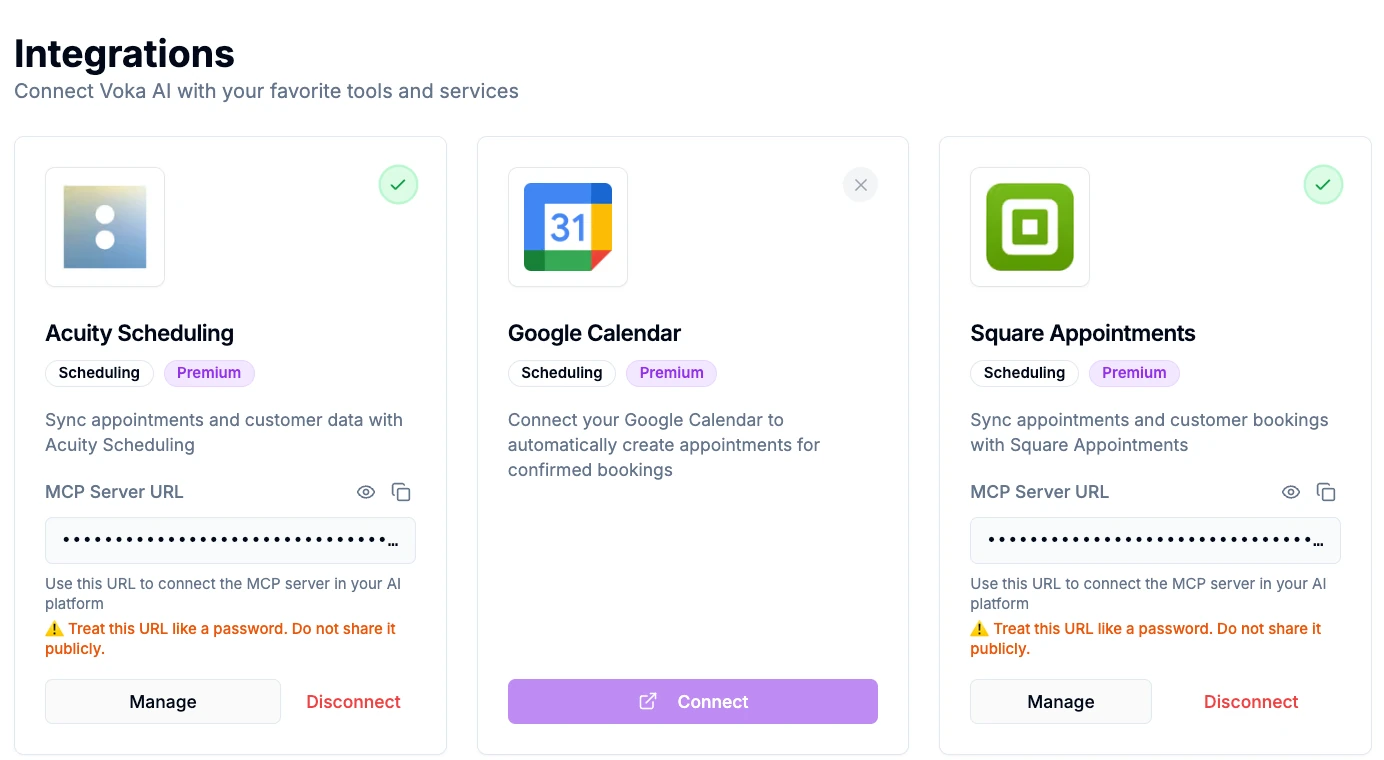
In VokaIntegrations›Apps›Square Appointments›ConnectClick Connect and you are sent to Square’s own authorization screen. Sign in as a user with admin rights on the Square account and approve the request. You are returned to Voka and the card flips to Connected.
There are no API keys to copy anywhere. Square shows you exactly what you are granting. In plain terms, Voka asks to:
- Read and manage appointments — including ones it did not create, which is what lets a caller move a booking your front desk made.
- Read your service catalog and business profile — so it quotes your real services, prices, durations and hours.
- Read and create customer records — so returning callers are recognised and new ones are filed under their own contact.
- Create orders and invoices — this is what produces the secure deposit link Voka texts after booking.
It asks to read payments, so it can tell a caller whether a deposit landed. It does not ask for permission to take a payment — there is no payment-write access on the connection at all, which is why a card can never be charged over the phone.
Choose your locations
In VokaIntegrations›Apps›Square Appointments›ManageIf your Square account has more than one location, pick the ones you want Voka answering for. Each location brings its own services, staff and hours, and Voka asks a caller which location they mean before it checks availability.
Verify the sync with a real call
In VokaAnalytics›CallsRing your Voka number and book something small. Then open your Square calendar and check three things: the appointment is there, it is on the right person, and it is the right length.
If anything looks off, the call log holds the recording, the transcript and what Square actually returned — which is usually enough to see the cause immediately.
Disconnecting, and revoking properly
Disconnecting is two separate actions, and it matters that you do both if your intent is to end Square’s trust in Voka entirely.
Disconnecting inside Voka stops Voka using the connection and clears the stored credentials on our side — but it does not revoke the authorization you granted in Square. To remove that as well, open your Square Dashboard, go to My Applications, find Voka AI and revoke access. Do both and the connection is fully ended.
Either way, appointments already in Square are untouched. Disconnecting removes Voka’s access; it never deletes your calendar.
Deleting the data Voka imported
Disconnecting does not by itself delete data Voka previously read from Square, such as cached service and customer records used to answer past calls. To have that removed, email support@vokaai.com from the address on your Voka account with the subject “Delete Square data”, confirming that you authorize the deletion. We delete it within 30 days and confirm in writing.
When something does not appear
A service is missing from what the assistant offers
Two causes account for nearly all of it. The service must exist in Square’s Service Library as an appointments service — a regular retail item is invisible to the integration. And “Bookable by Customers Online” must be on for that service and for each of its variations, because that toggle controls API booking as well as online booking.
A call booked successfully but nothing reached Square
Check whether that service carries a cancellation or no-show fee. Square’s Bookings API will not create a booking for a service that has one, so it cannot be booked by phone at all. Remove the fee, or keep it and treat the service as online-only. If the fee was there to deter no-shows, turn on deposits instead — Voka books first, then texts a secure Square checkout link.
“Connection error” or an expired token
Reconnect from Integrations › Apps › Square Appointments. This happens if access was revoked in Square, or if the Square account changed owner. If it recurs, send us the time of a failed call and we can see exactly what Square returned.
It connects, but the assistant books badly
That is a configuration question rather than a connection one. Work through Fine-Tuning Square Appointments for Voka AI — service names, staff assignments, durations and the settings that quietly block booking.
Frequently asked questions
Which Square Appointments plan do I need?
You can connect on any plan, but what Voka can manage depends on it. Square grants seller-level Bookings API permissions — full visibility into the calendar and the ability to manage any appointment on it — only to sellers subscribed to Appointments Plus or Premium. On Square Free, Voka works with buyer-level permissions: it books, and it manages the bookings it created, but appointments made online, in person or as walk-ins stay outside its reach.
Does disconnecting in Voka AI revoke Square access completely?
Not on its own. Disconnecting in Voka stops Voka using the connection and clears the stored credentials on our side, so nothing further is read or written. It does not revoke the authorization you granted inside Square. To remove that as well, go to your Square Dashboard, open My Applications, find Voka AI and revoke access. Doing both is what fully ends the connection.
Why do some of my Square services not appear?
Two causes account for nearly all of it. First, the service must exist in Square’s Service Library as an appointments service — a regular retail item is invisible to the integration. Second, "Bookable by Customers Online" must be on for that service and for each of its variations; that toggle controls API booking as well as online booking. If a service still does not appear after both are correct, contact support.
A call booked successfully but nothing appeared in Square. Why?
The usual cause is a cancellation or no-show fee on that service. Square’s Bookings API will not create a booking for a service carrying one, so it cannot be booked by phone at all. Remove the fee to open phone booking, or keep the fee and treat that service as online-only. If you want no-show protection without blocking the phone, turn on deposits instead — Voka books first, then texts a secure Square checkout link.
How long does connecting take?
A few minutes. You authorize Voka inside Square once, choose which locations you want live, and the service menu, staff and availability sync automatically. There are no API keys to copy and no developer setup.
Will Voka AI ever take a card over the phone?
No. Voka never asks a caller to read out a card number. When payment collection is on, it books the appointment and then texts a secure Square checkout link, and the caller pays on Square’s own hosted checkout.
Related
Square platform behaviour described here was verified against Square’s own Bookings API documentation on September 3, 2026. Menu paths follow the Square Dashboard as of that date and may move. Square Appointments is a product of Block, Inc. Voka AI is an independent product that connects to Square through its public API, and is not affiliated with, endorsed by, or sponsored by Square. Last updated September 3, 2026.